MobiCRM for Outlook - How it works
Contact
The MobiCRM for Outlook plugin first checks whether the recipients of the email are present in MobiCRM.
If the recipients exist in MobiCRM, you can link the email to the recipients using the paperclip icon.

The recipient the email has been linked to is highlighted with a green border.

You can identify contacts that do not exist and create them directly in MobiCRM using the + icon. MobiCRM also tries to retrieve as much information as possible from the body of the email (phone number, address, company, website...) to prefill the form.

You can also directly create the account associated with the contact by clicking the "+" button next to the Account field.

Project
From the menu, choose "Project" to link the email to a project. This entry is available in the Enterprise edition, when projects are enabled and you are allowed to view projects.
Search for the project by name, then click it to link the email. The linked project appears in the "Linked projects" list, highlighted with a green border. Click a linked project to open it in MobiCRM.
The email then appears in the "Emails" card of the project's Activity tab, and in the activity of the accounts linked to the project (see Emails).
Menu
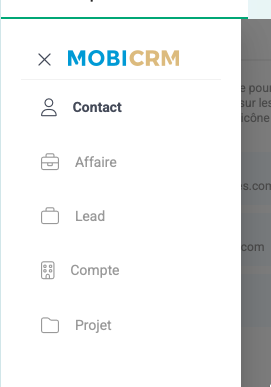
You can link the email to an account, a business, a lead or a project by clicking the  icon