Connecting ChatGPT to MobiCRM (MCP plugin)
ChatGPT can connect directly to MobiCRM through an MCP (Model Context Protocol) server added as a plugin. Once configured, you can ask ChatGPT about your MobiCRM accounts, contacts, appointments and tasks directly from a conversation.
This feature requires a ChatGPT plan that allows adding custom MCP servers. Depending on your plan, adding an MCP server may need to be authorized by your workspace administrator.
Setup procedure
- In ChatGPT, open Settings > Integrations > Plugins.
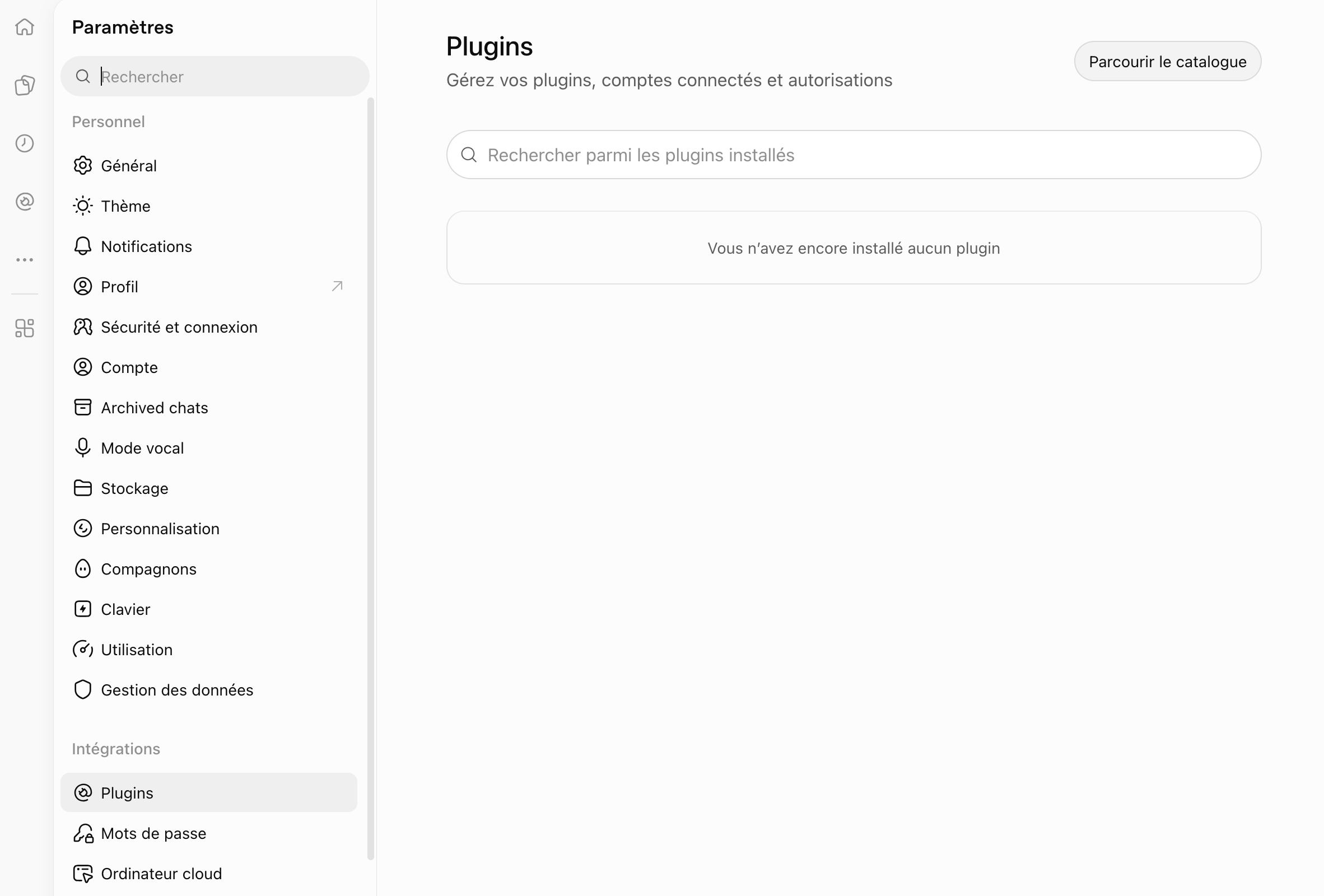
- On the Plugins page, click Add, then select Create a custom MCP server.

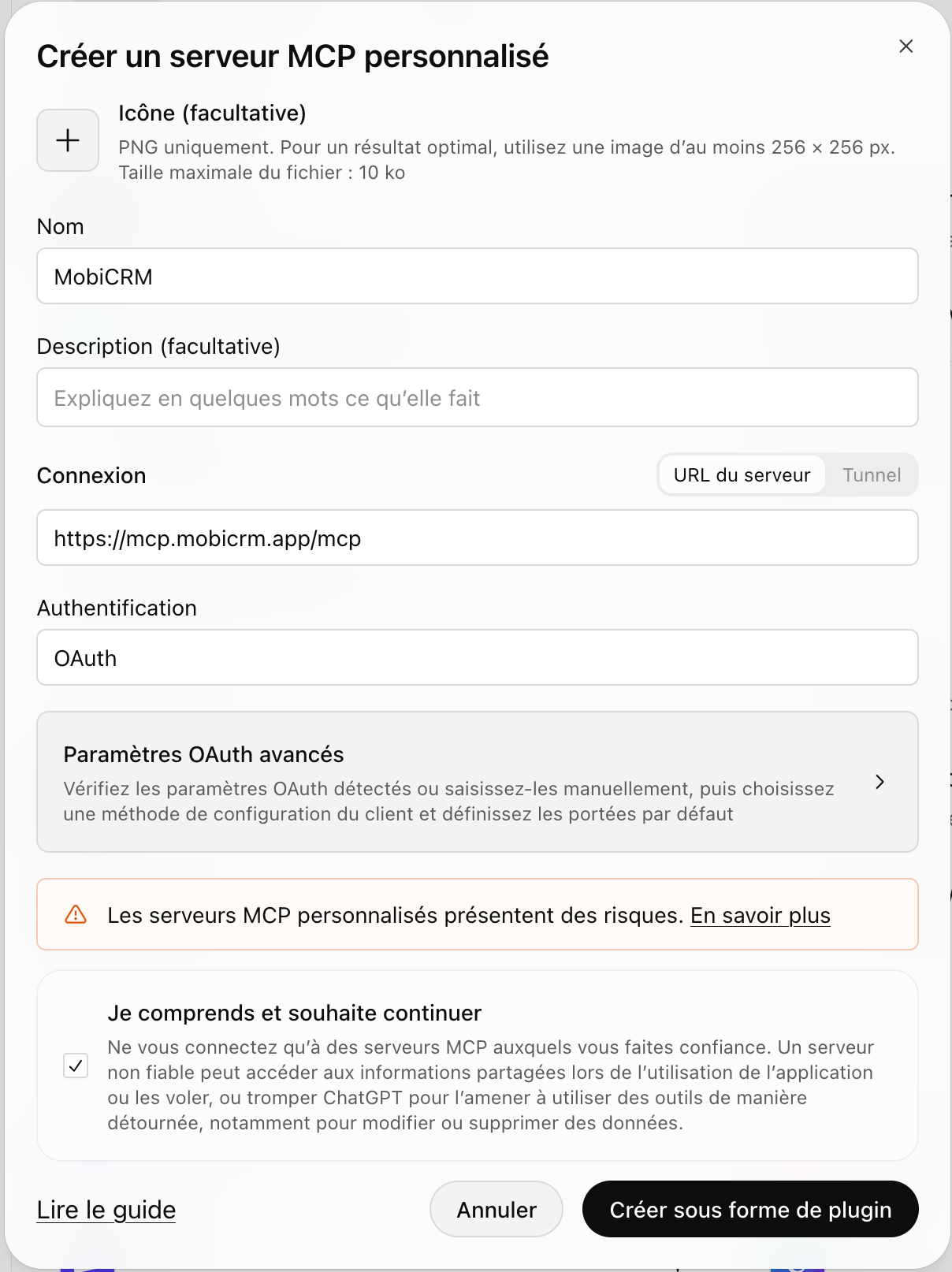
- In the "Create a custom MCP server" window, enter:
- Name:
MobiCRM - Connection: Server URL -
https://mcp.mobicrm.app/mcp - Authentication: OAuth
Then check I understand and want to continue.
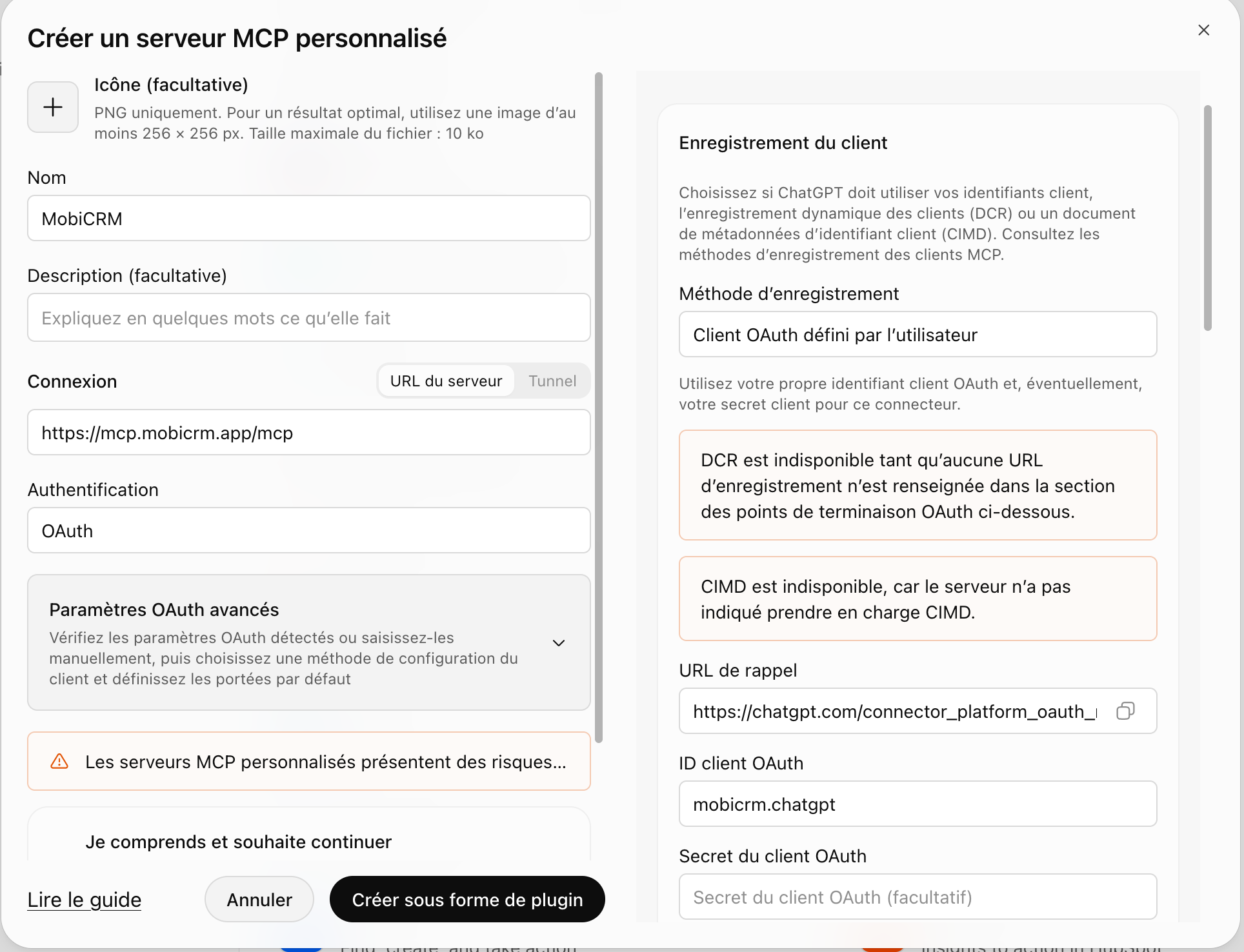
- Expand Advanced OAuth settings and configure the client registration:
- Registration method: User-defined OAuth client
- OAuth client ID:
mobicrm.chatgpt - OAuth client secret: leave empty
Then click Create as plugin.
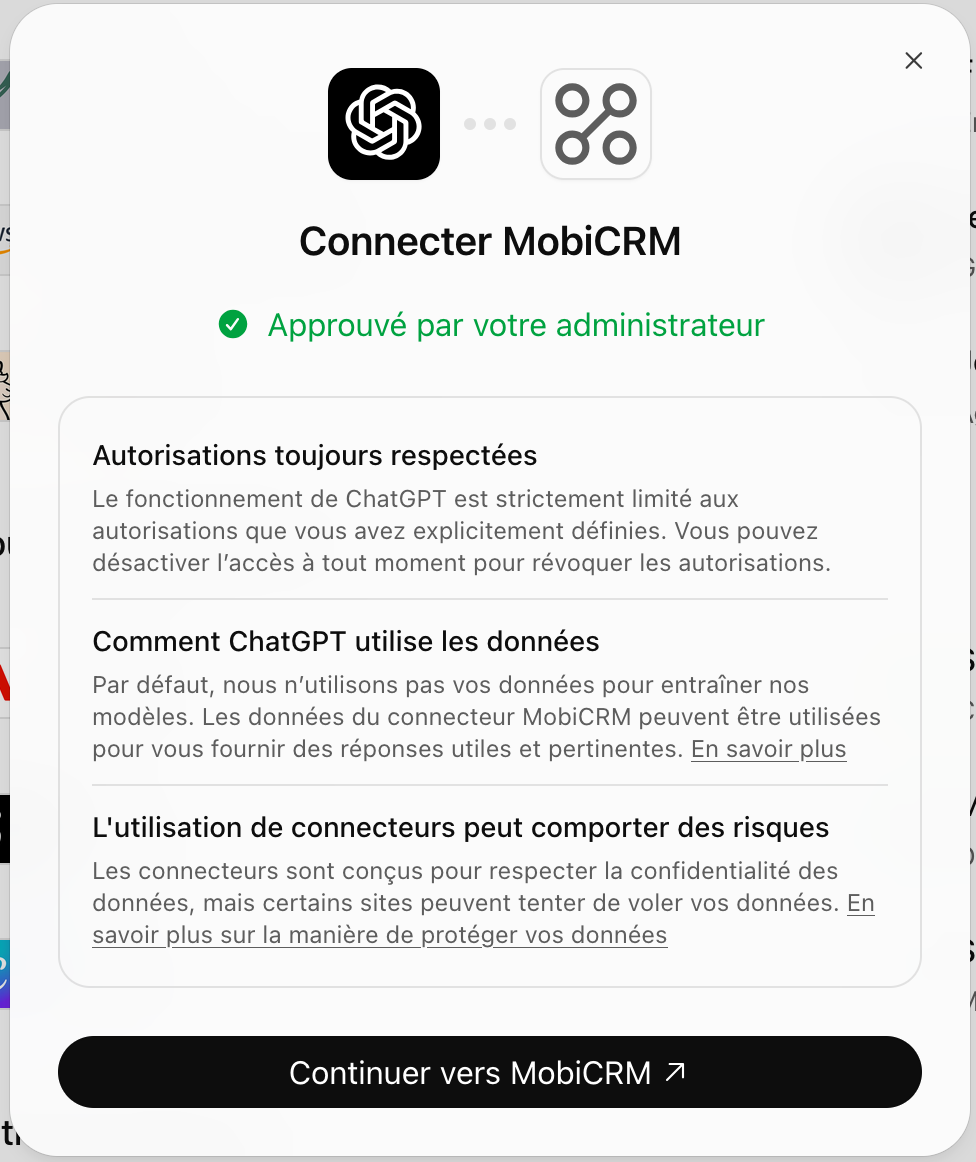
- A "Connect MobiCRM" window opens. Click Continue to MobiCRM.
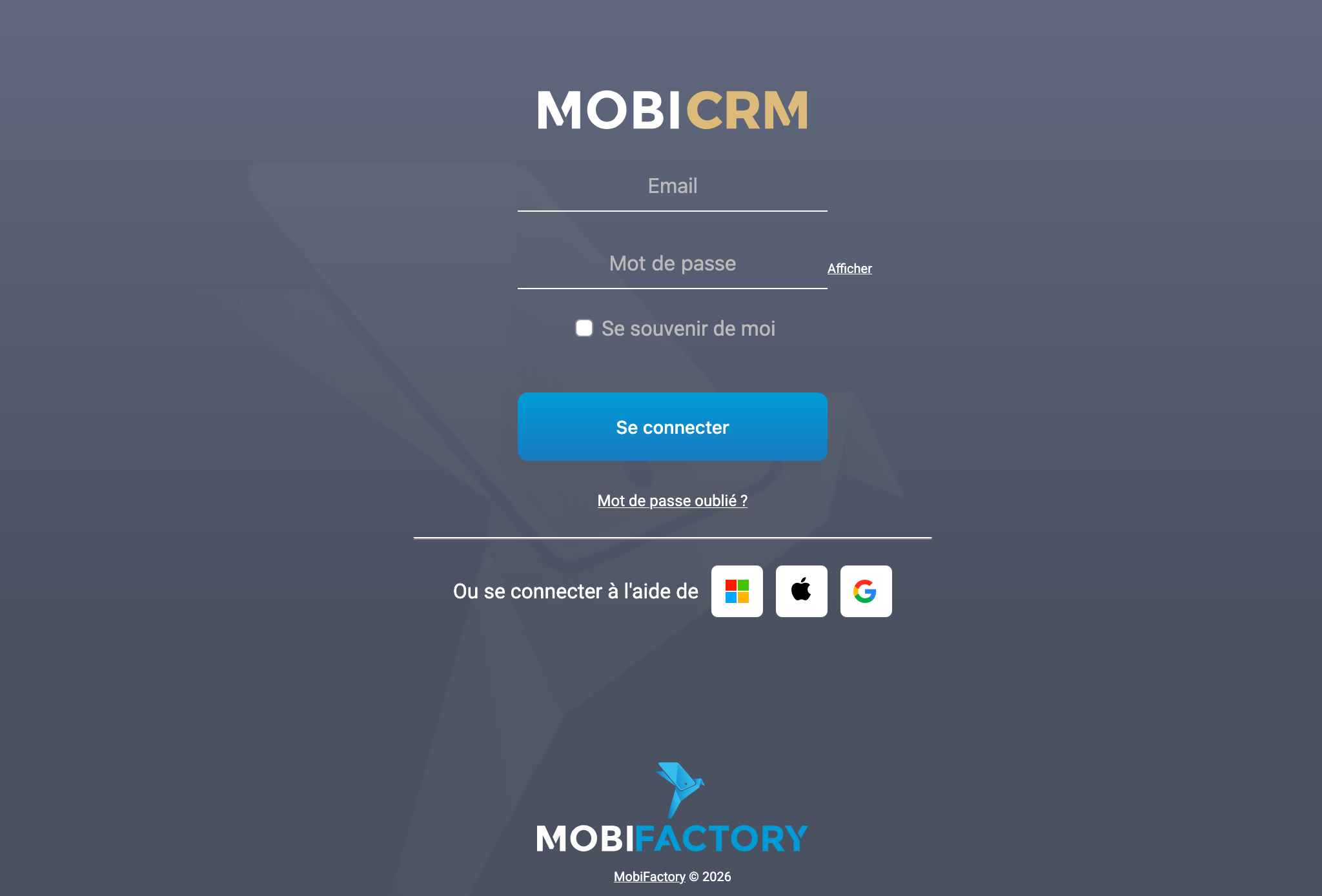
- Sign in with your usual MobiCRM credentials on the login page that opens, then authorize ChatGPT's access.
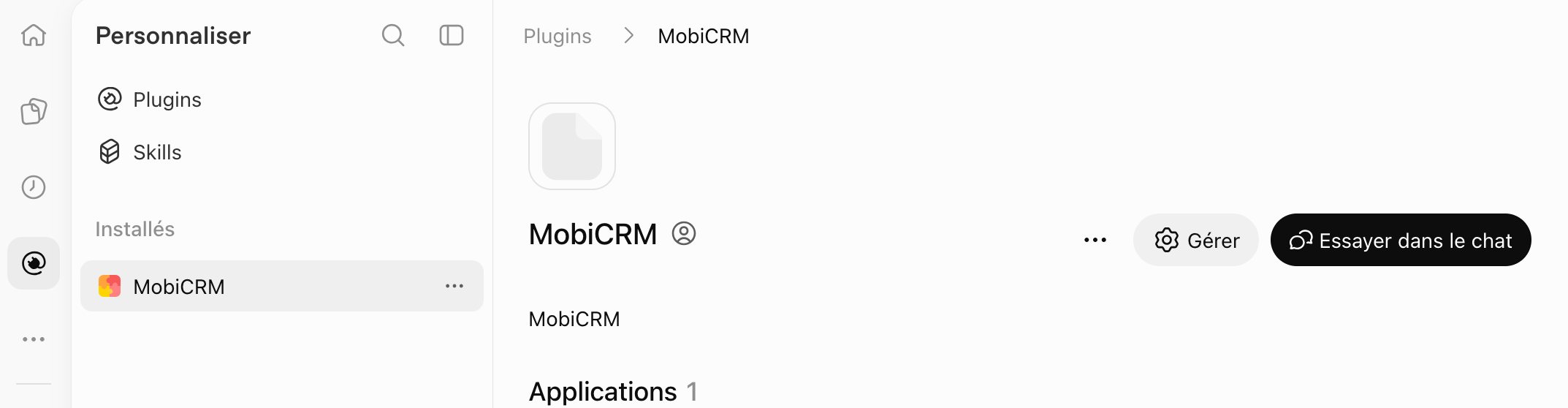
- Back in ChatGPT, the MobiCRM plugin appears in the list of installed plugins. You can manage it with the Manage button or test it directly with Try in chat.
Usage example
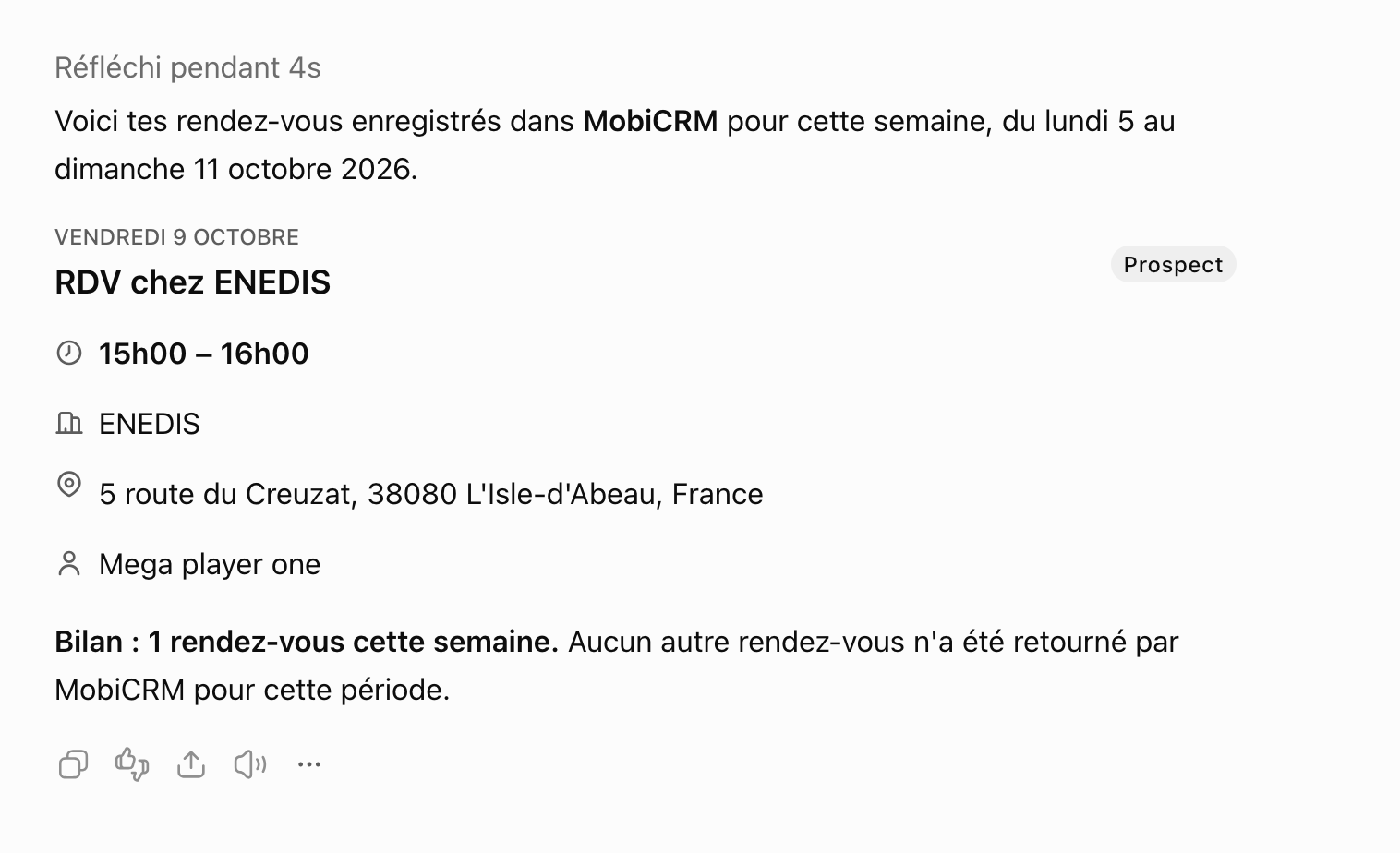
Once the plugin is configured, mention MobiCRM at the beginning of your message to query your data, for example to find out your appointments for the week.
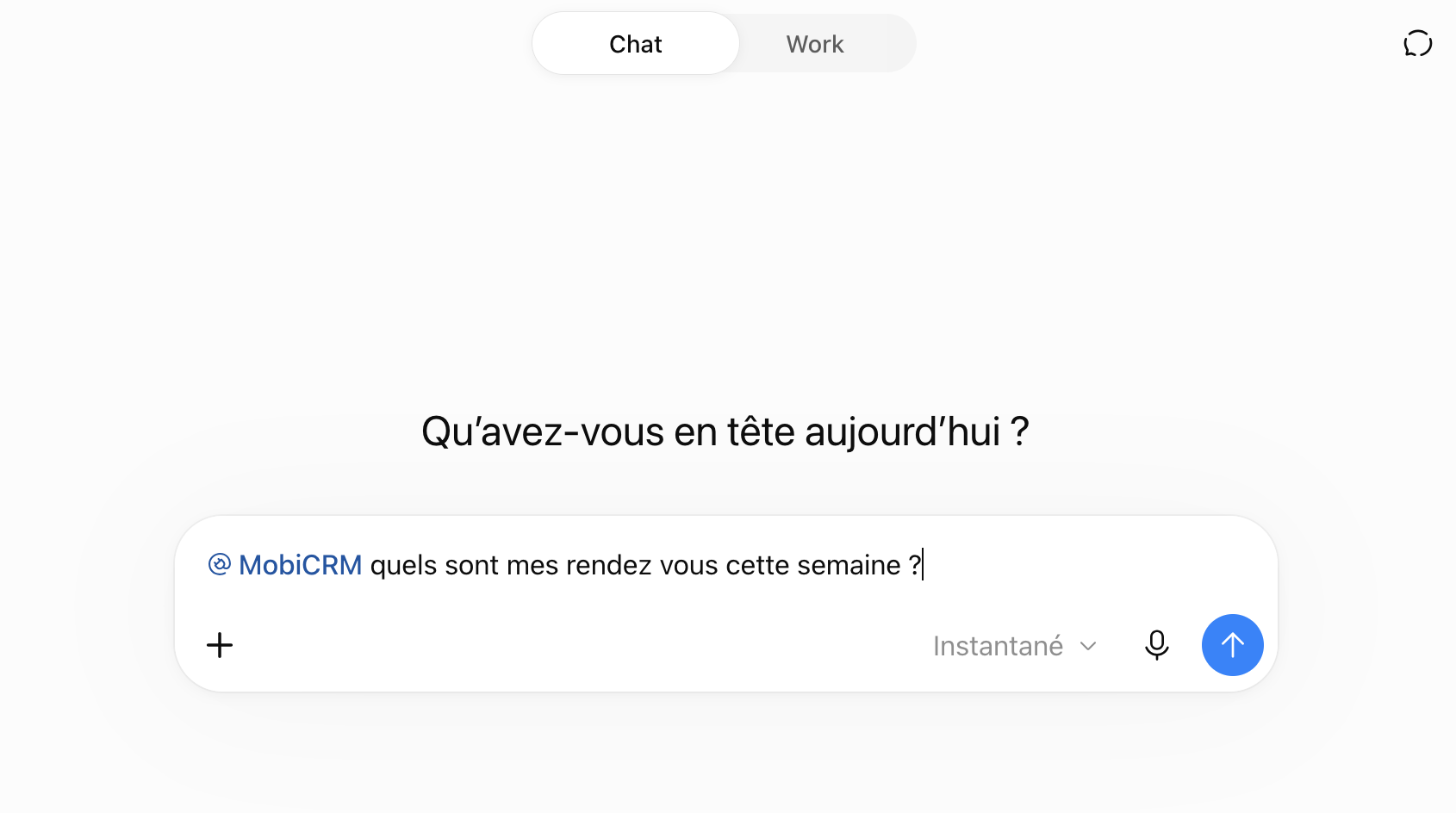
ChatGPT queries MobiCRM and shows you the result.