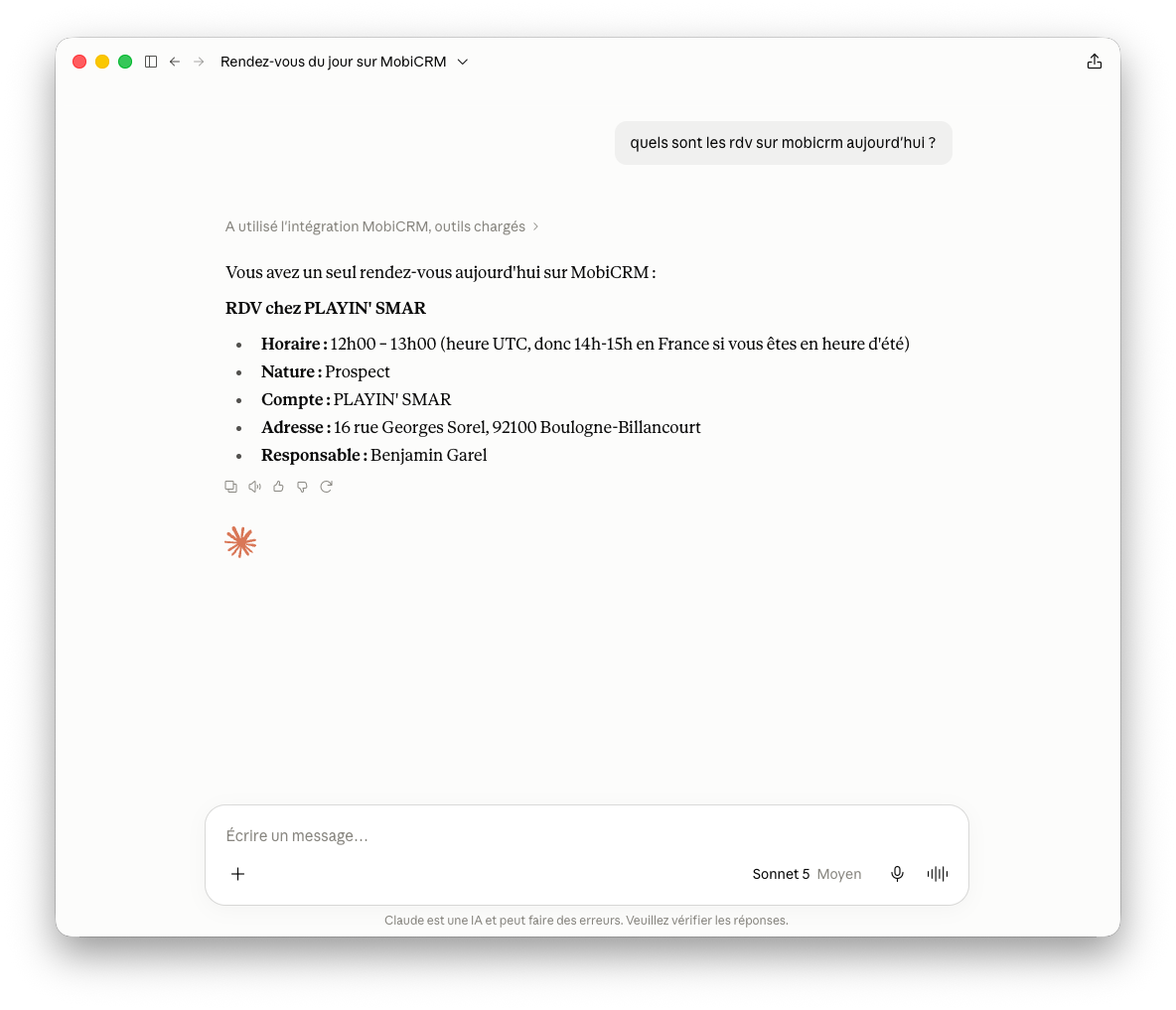
Connecting Claude to MobiCRM (MCP connector)
Claude can connect directly to MobiCRM through an MCP (Model Context Protocol) connector. Once configured, you can ask Claude about your MobiCRM accounts, contacts, appointments and tasks directly from a conversation.
This feature requires a Claude plan that allows adding custom connectors (Pro, Max, Team or Enterprise).
Setup procedure
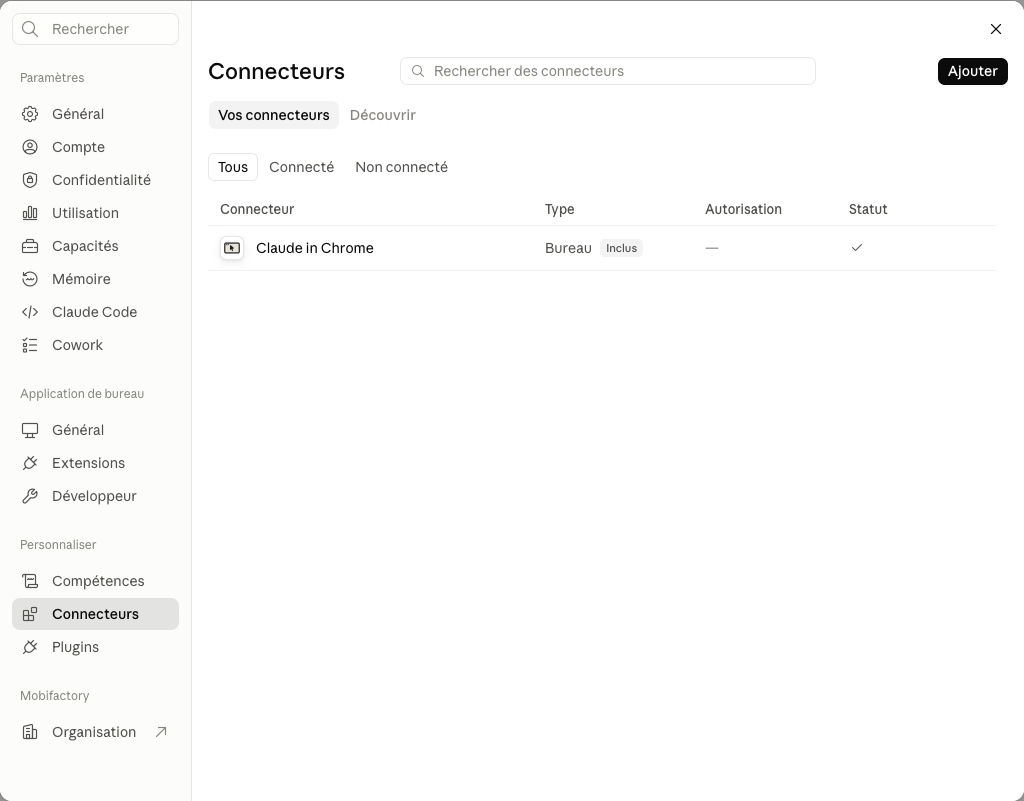
- In Claude, open Settings > Connectors, then click Add.
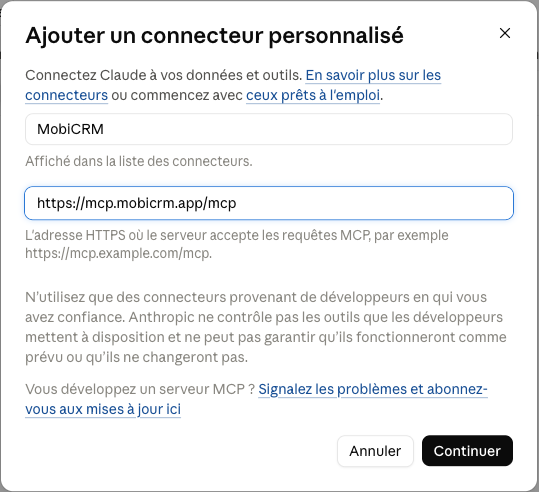
- In the "Add custom connector" window, enter:
- Name:
MobiCRM - MCP server URL:
https://mcp.mobicrm.app/mcp
Then click Continue.
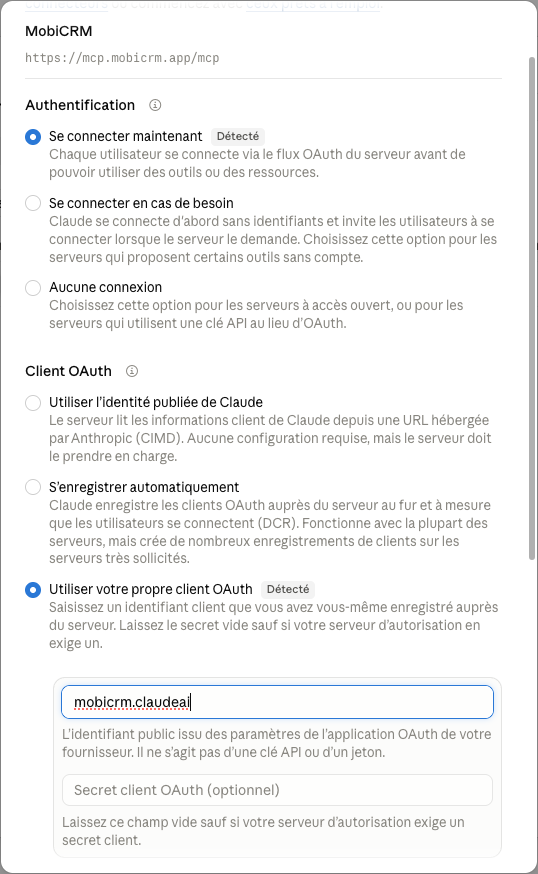
- Configure authentication:
- Authentication: Connect now
- OAuth client: Use your own OAuth client
- Client ID:
mobicrm.claudeai - Client secret: leave empty
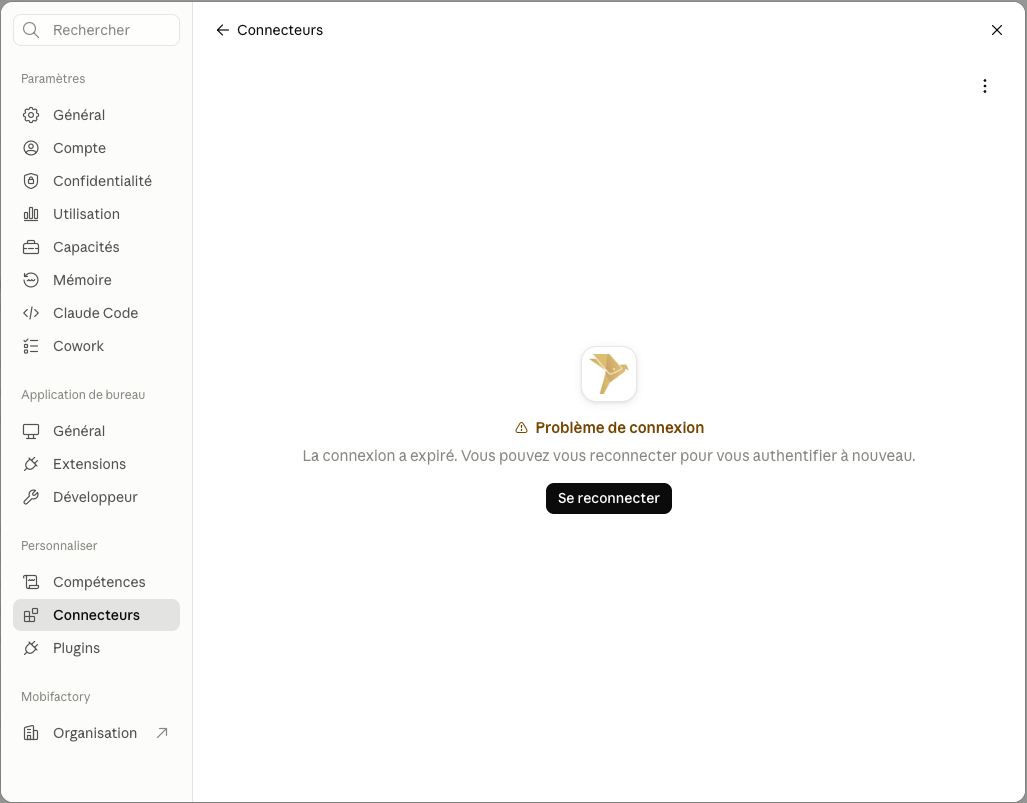
- If a "Connection problem - The connection has expired" message appears, click Reconnect.
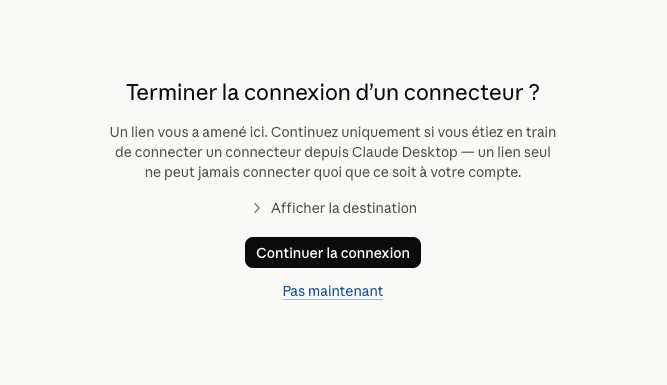
- A confirmation page opens in your browser. Click Continue connecting.
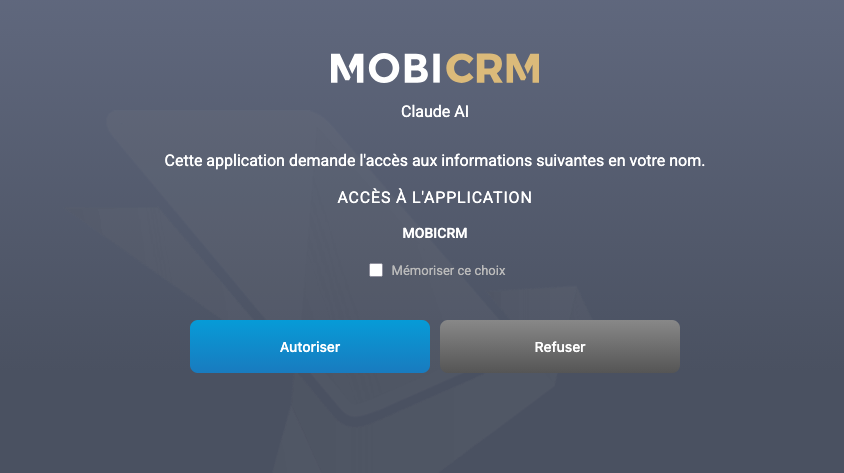
- Sign in with your usual MobiCRM credentials, then authorize Claude's access by clicking Allow.
- Back in Claude, the MobiCRM connector appears as connected. There you can view and customize the permissions granted to the various MCP tools made available.
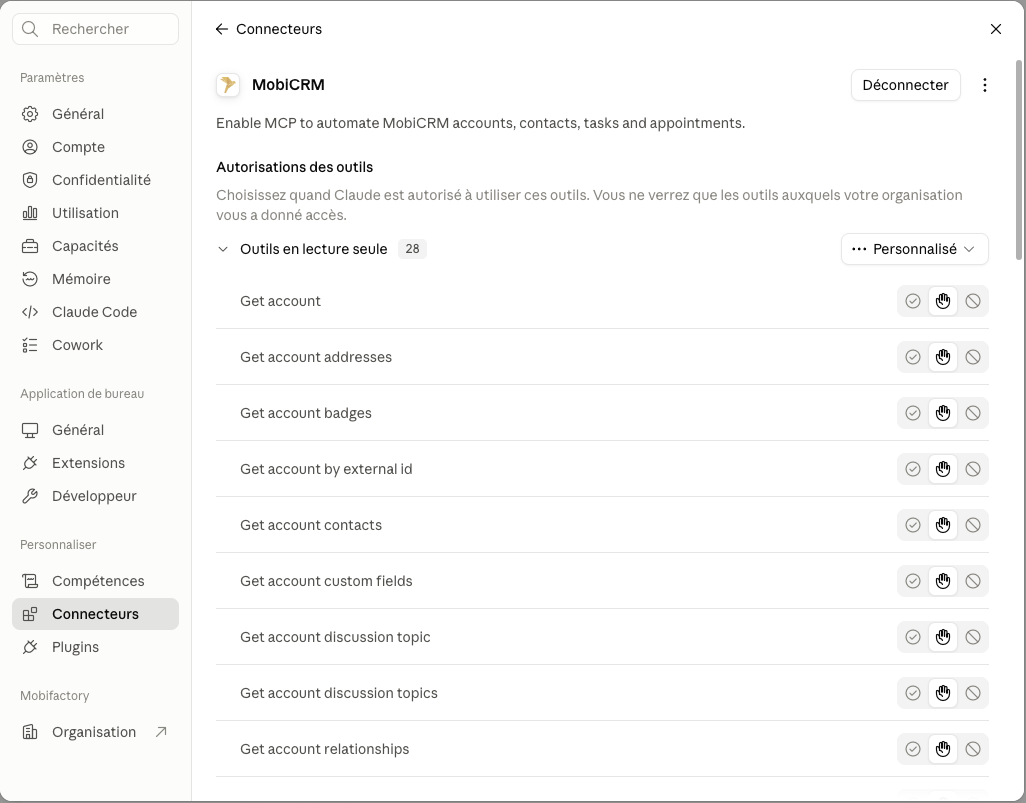
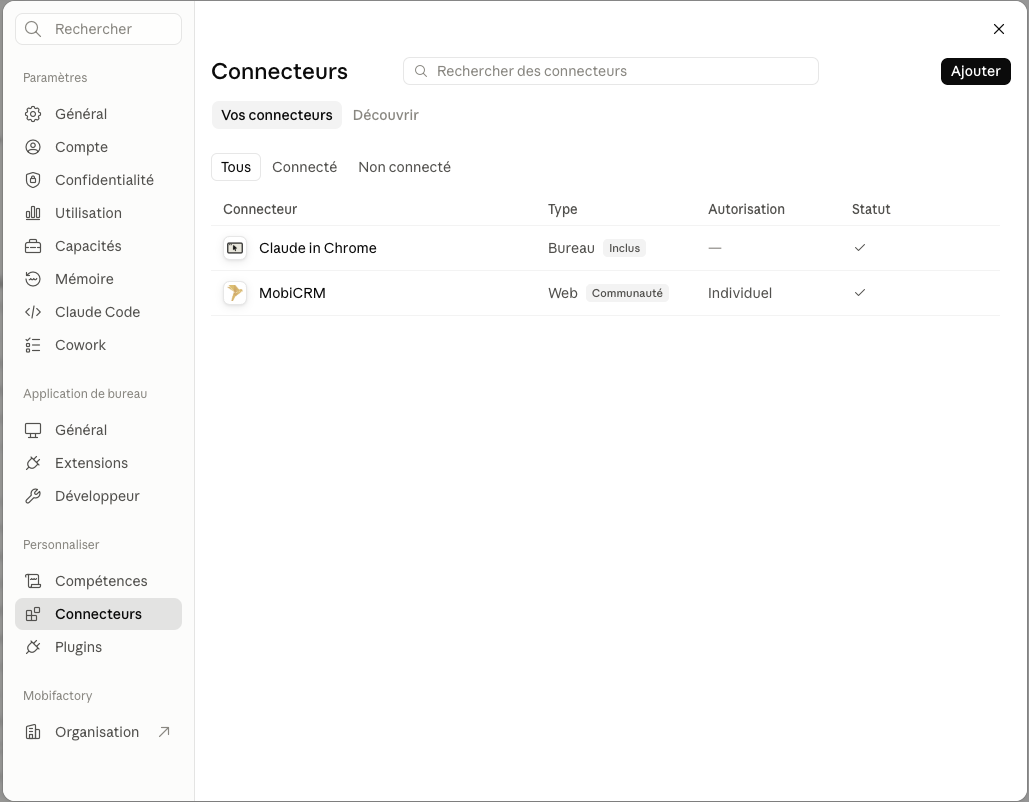
- The MobiCRM connector now appears in your list of connectors, with the connected status.
Usage example
Once the connector is configured, you can ask Claude directly about your MobiCRM data, for example to find out your appointments for the day.